





How to use with Raspbian/Ubuntu Mate/Win10 IoT Core System
Step 1, Install Raspbian official image
Download the latest image from the official download.
Install the system according to the official tutorial steps.
Step 2, modify the “config.txt”
After the programming of Step1 is completed, open the config.txt file of TF card root directory and
add the following code at the end of the file, save and eject Micro SD Card safely:max_usb_current=1
hdmi_force_hotplug=1
config_hdmi_boost=7
hdmi_group=2
hdmi_mode=87
hdmi_drive=1
display_rotate=0
hdmi_cvt 1024 600 60 6 0 0 0
Step 3, Drive the HDMI with the Raspberry Pi
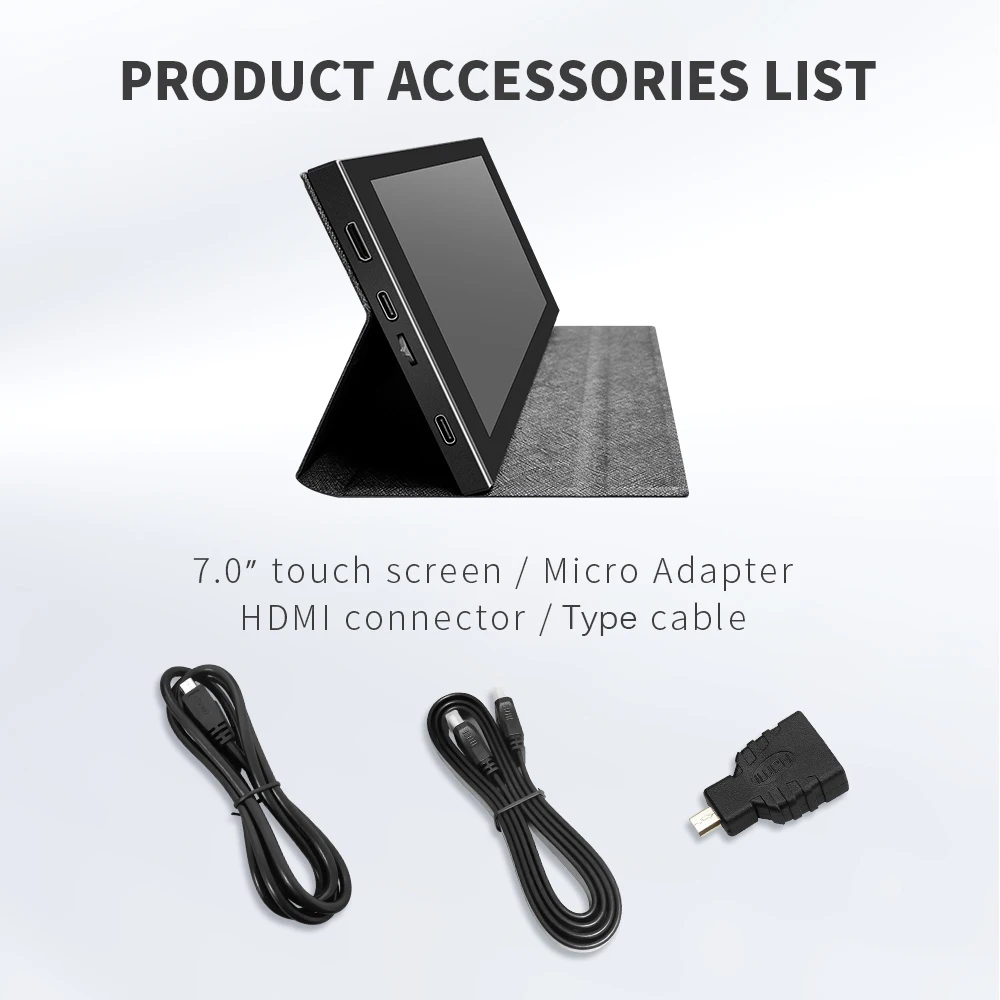
Insert the TF Card to Raspberry Pi, connect the Raspberry Pi and LCD by HDMI cable;
connect
USB cable to one of the four USB ports of Raspberry Pi,and connect the
other end of the USB cable to the USB port of the LCD;
then
supply power to Raspberry Pi; after that if the display and touch both
are OK,it means drive successfully (please use the full 2A for power
supply).
How to use as PC monitor
Connect the computer HDMI output signal to the LCD HDMI interface by using the HDMI cable
Connect the LCD’s USB Touch interface (Either of the two MicroUSB) to the USB port of the device
If there are several monitors, please unplug other monitor connectors first, and use LCD as the only monitor for testing.

Reviews
There are no reviews yet.